
In the Manage User Options menu, admin users can change a user's access to Client Portal. To open the menu, click the triple dot icon that corresponds with a user’s information in the list.
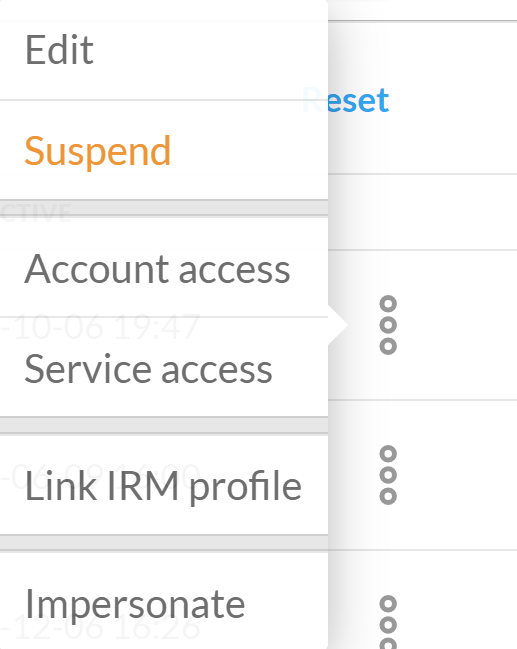
You can click an option in the menu to open a modal to do the following:
-
Edit - change the user's:
-
First and last name
-
User type
-
Email
-
Default language
-
Security Settings (including two-factor authentication)
-
-
Unlock (locked users only) - allows a locked user to attempt to sign in again
-
Suspend (active users only, unavailable to self) - revoke an active user’s permission to access Client Portal
-
Restore (suspended users only) - give a suspended user permission to access Client Portal
-
Account access - add or remove accounts and account groups for the user (disabled for admin users)
-
Service Access - change permissions for Publishing Service (disabled for admin users)
-
Impersonate - Impersonate access as the selected staff or investor user (only for admin users)
When you suspend users who are currently signed in to the app, their session will immediately timeout and they will be brought to Client Portal’s sign-in page where a message will inform them that their session is no longer valid. If the user tries to sign in again their username and password will be rejected as those credentials are now invalid.