
As an Advisor, the Mass Publishing page allows you to create mass publications, so you can instantly send sets of files to multiple investors.
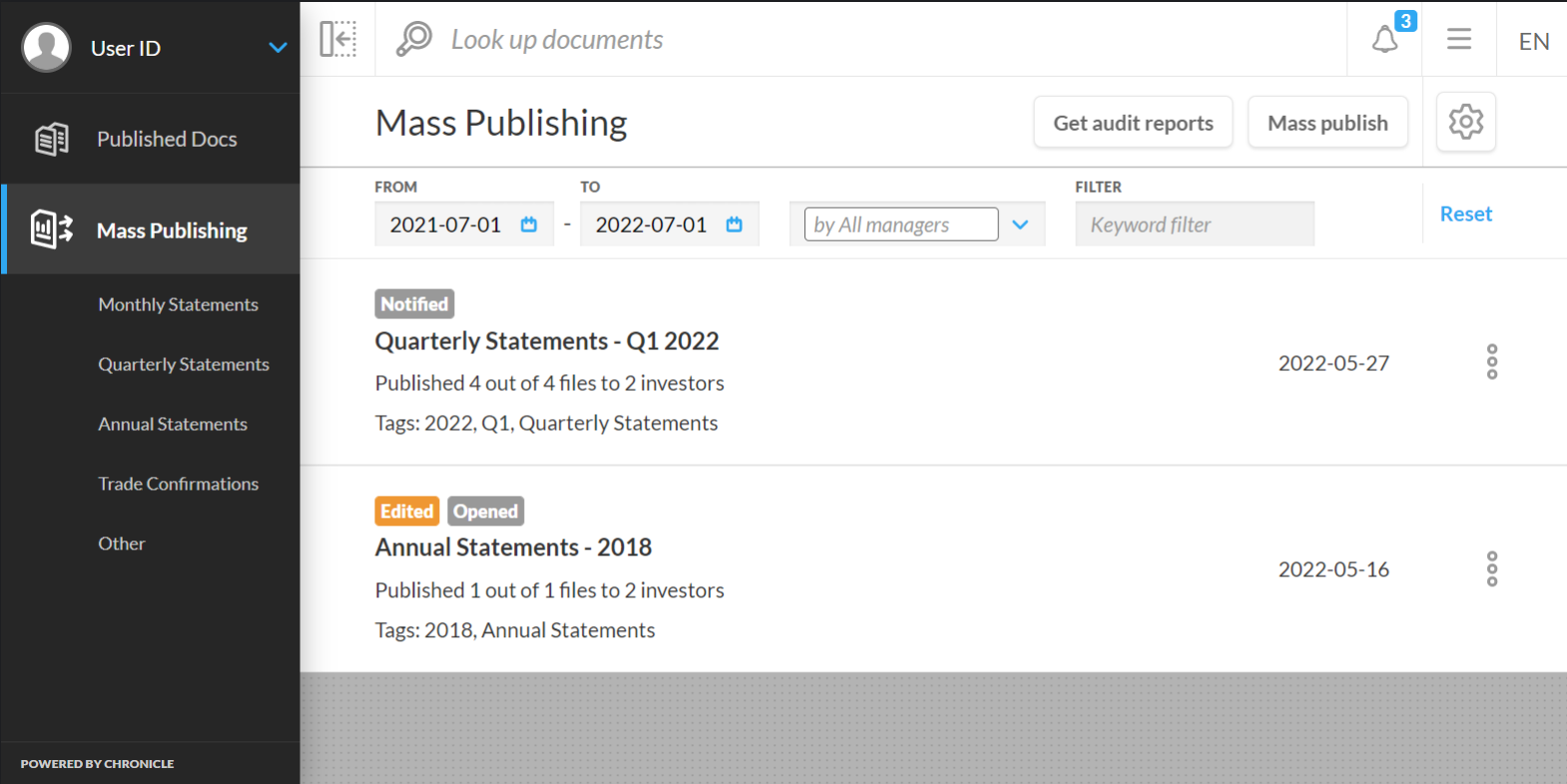
To create a mass publication:
-
Select the Mass Publish button in the Title Bar to open the Mass Publish modal (this option is disabled for users without permissions)
-
Enter a name for the mass publication in the designated area
-
Select the arrow under Publish Folder to select a location (the FTP folder where the files you want to publish are saved)
-
Enter the unique Publishing ID for the files you want to publish under Publish ID
-
Enter a description for the publication in the designated area (optional)
-
Select any document category tags for your publishing job (optional)
-
Select any reporting period tags for your publishing job (optional)
-
To make a publication mandatory, click the checkmark next to the Mandatory document
-
Select the Publish button
Your FTP folder holds sets of files. Each file in a set has a name made up of several elements, including a Publishing ID and a unique account code. Files in the same set have the same Publishing ID. When you enter this ID in the Publish Document modal, each file in that set is published to the investors whose account codes are included in a file’s name (e.g. if two files in a set in your FTP folder have the Publishing ID “2018-Q1” and the account codes “001” and “002”, when you enter that ID in the Publish Document modal each investor who holds account 001 and 002 receives a document that corresponds to their account).
When files are published they are copied from their source location and placed in a secure storage location managed by Client Portal.
Large mass publishing jobs and error messages
Large mass publishing jobs requiring more time can be processed in the background. Once started, the progress of your mass publish job will be displayed with an "In Progress" status. A notification will appear to let you know if the results of your mass publication are successful, or if any errors were encountered.
To help you create a successful publication, these error messages will outline the errors encountered that prevented a successful publishing job. Unknown errors will produce a generic error message. Additional details regarding the success or failure of your mass publish job can be found in the Published Document Audit report.
If at any point you no longer want to publish either type of document at all, you can click the Cancel button at the bottom of the Publish Document modal. Before the document is discarded, you are asked to confirm the action by clicking the Discard button in the Cancel modal that opens. You can also click the Cancel button in the modal to continue publishing your document.