
The Mass Publishing page also allows you to edit publications you have already published to users. This way, you can correct any mistakes that may have occurred during publishing, or update a publication so it aligns with new information or circumstances.
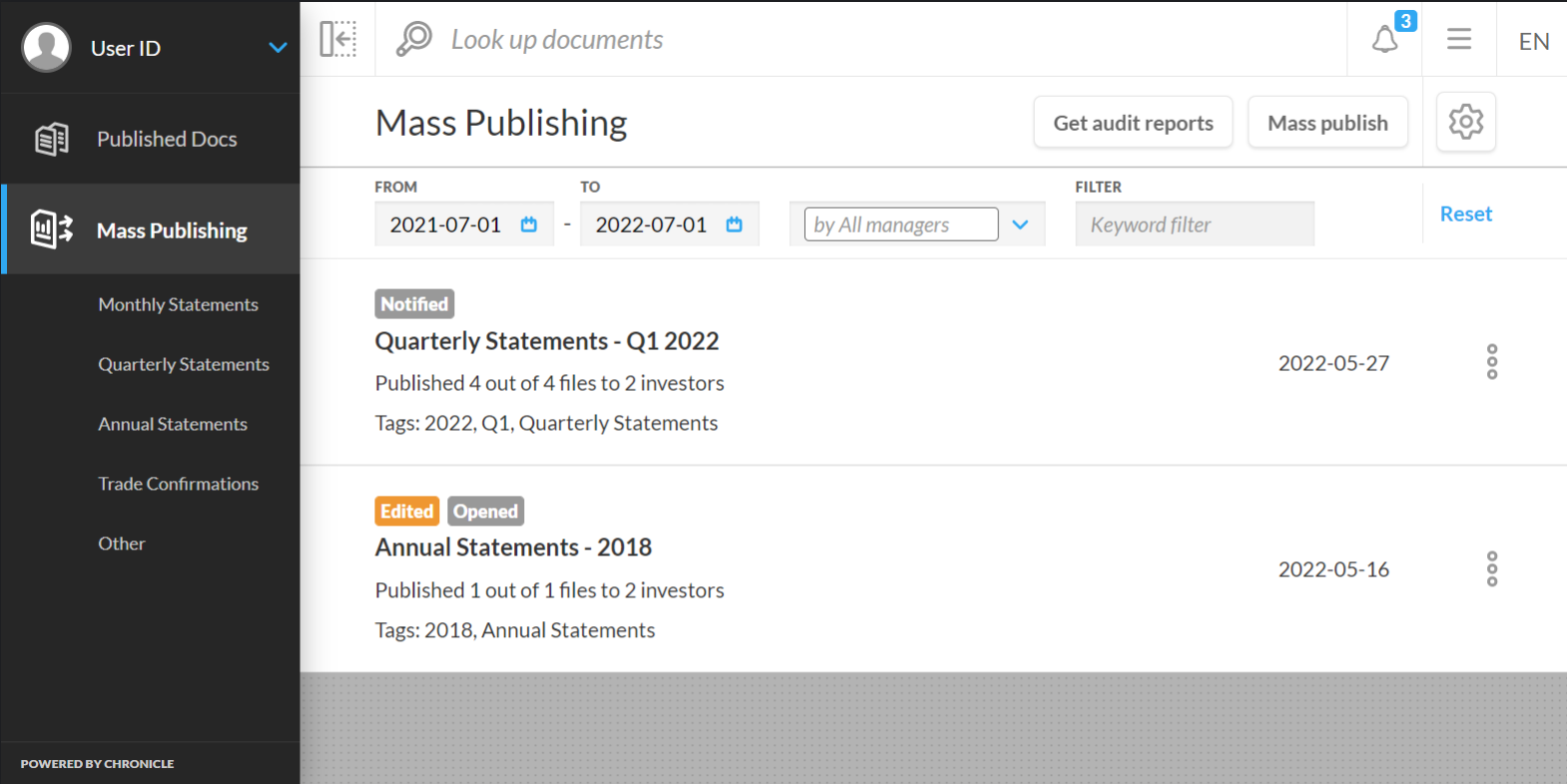
To edit a publication:
-
Select the mass publication’s options menu
-
Select Edit Mass Publication to open the Edit Publication modal
After you make all your desired changes to the publication, select the Save button at the bottom of the modal to save the changes.
The Edit Publication modal also includes four additional sections to help track the publication’s history. Those sections include:
-
Last publisher/editor
-
Last publish/edit date
-
# of files – the number of files included in the mass publication
-
# of investors – the number of investors who received files from the mass publication
An icon will appear in the Last publisher/editor and Last publish/edit fields if a publication has been edited. Hovering over this icon will display the original publisher and publish date.
You can hover over the exclamation mark icon to reveal all users who have published and edited this publication (in chronological order).
After you edit a publication, the publishing date on that publication is updated to match the date the edit occurs. As well, a tag that says EDITED appears on your publication. You can hover over this tag to reveal who edited the publication and when, and a list of the changes.
Aside from editing a publication as a whole, you can also edit the individual documents within a mass publication on the publication’s Open Mass Publication page.