
Document category tags
You can assign document category tags to a previous publication via the Edit document modal or to a new publishing job via the Publish document modal. Start typing in the Document category tags (Optional) field to bring up a list of available document category tags. When publishing documents via a document category page, the corresponding document category tag is prefilled in the Document category tags (Optional) field. Remove the tag from the search field by clicking the (x) icon.
Document category pages
Select and open a document category page via the Sidebar to view any published documents and mass publications tagged with that category.
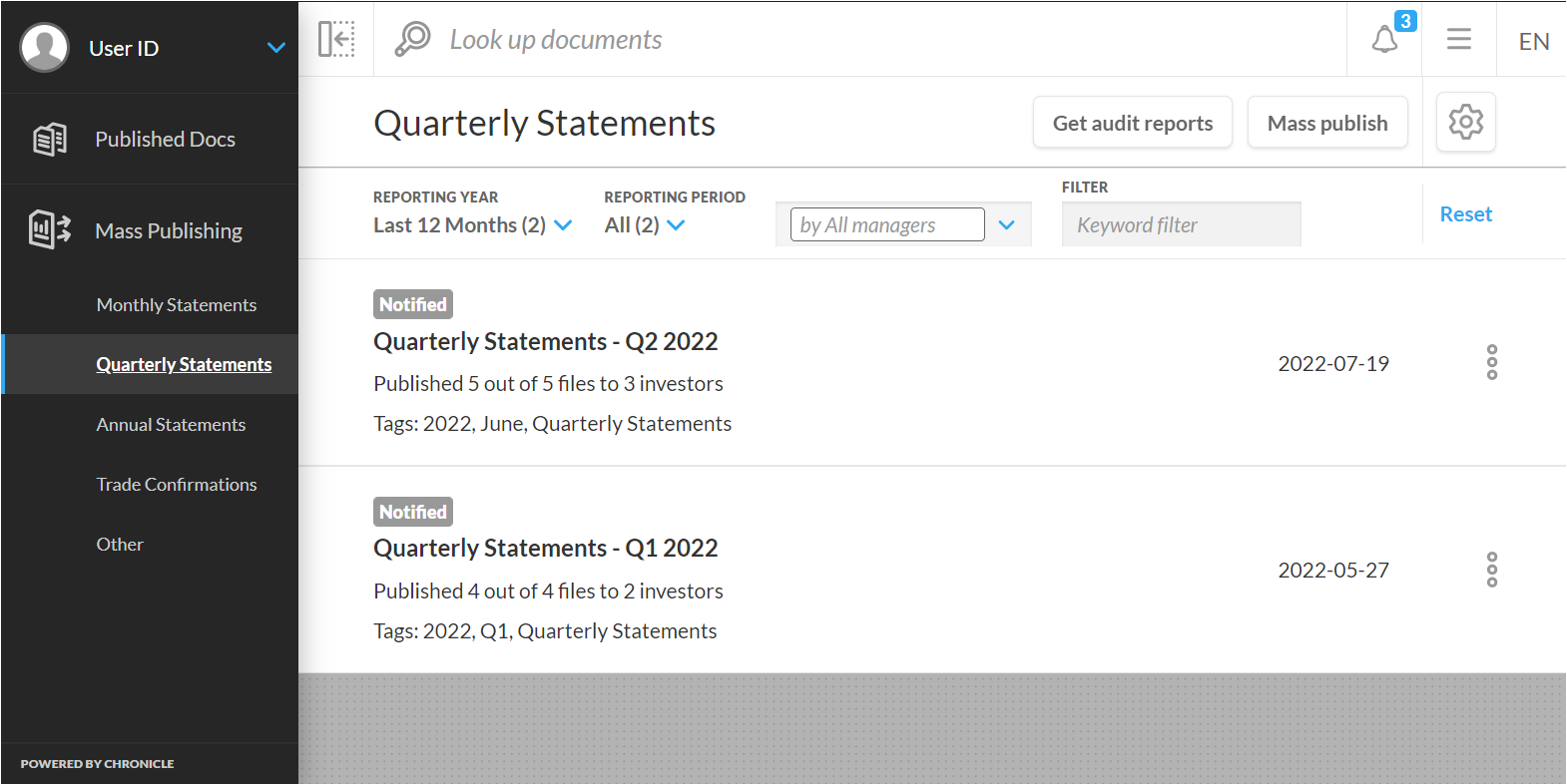
After submitting a publishing job with document category tags, Client Portal will automatically navigate you to the document category page of the publication’s first listed document category tag.
Reporting period-based document category pages replace the “From”/”To” date selector with Reporting Year and Reporting Period filters. Non-reporting period-based feature the “From”/”To” date selector for the original published date range.
In a document category page, Staff users can generate audit reports based on document category and currently applied filtering criteria via “Get audit reports” or “Get audit reports for investors”
Reporting period tags
Add tags to Publishing jobs to indicate reporting years and periods. Each publication can have multiple tags to indicate reporting years, months, and quarters. Reporting period tags are predefined and not configurable.
Assign reporting period tags to a published document or mass publication via the Edit document modal, or to a new publishing job via the Publish document modal. Start typing in the Reporting period tags (Optional) field to bring up a list of reporting years, months, and quarters.
You can now filter reporting period-based document category pages via the Reporting Year and Reporting Period dropdowns.