The Published Documents page also allows you to edit documents you have already published. This way, you can correct any mistakes that may have occurred during publishing or update a document, so it aligns with new information or circumstances.
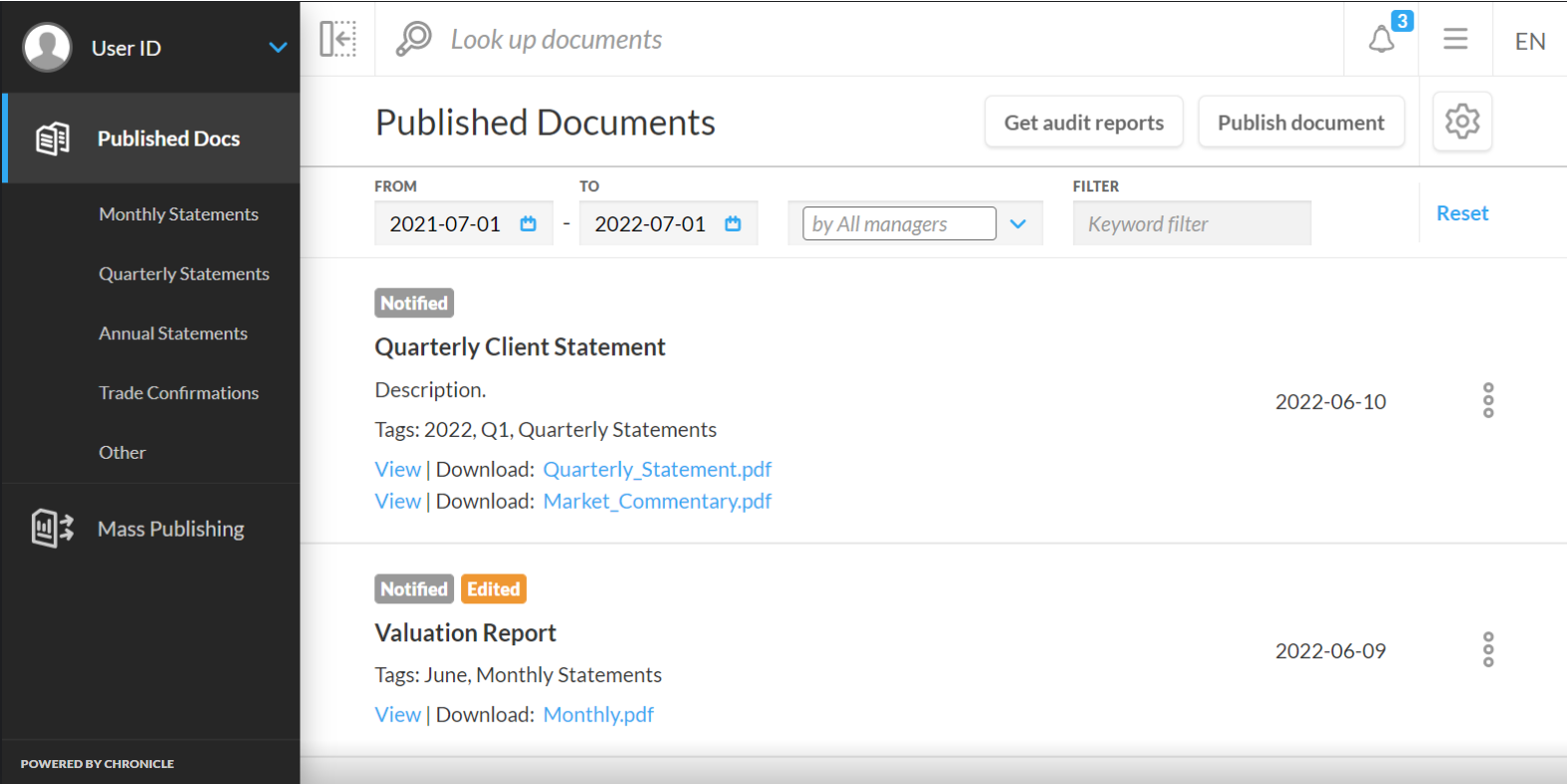
To edit a regularly published document:
-
Select the options menu icon ( ⠇) on the right-hand side of a record
-
Select Edit Publication in the menu that appears to open the Edit Publication modal
-
Select the paperclip icon to select and upload a new file to replace the existing file in the document
-
Enter a new user’s name/email under Publish to area to publish this document to those new users or click the All Investors button
-
Select the X icon next to the name of any user currently listed in the modal to make sure they don’t see the revision made to this document
-
Toggle the Mandatory document checkmark to make changes to it's regulatory requirement
-
Override the default notification settings by clicking the Override checkmark and changing the notification settings for this particular document
After you make all your desired changes to the document, click the Save button at the bottom of the modal to save the changes.
The Edit Publication panel also includes two additional sections to help track the document’s publication history. Those sections include:
-
Last publisher/editor – you can hover over the exclamation mark icon to reveal all users who have published and edited this document (in chronological order).
-
Last publish/edit date.
An icon will appear in the Last publisher/editor and Last publish/edit fields if a publication has been edited. Hovering over this icon will display the original publisher and publish date.
The Published Documents page also allows you to edit mass publications and open mass publications.
How to delete a publishing job
After you edit a document, the publishing date on that document is updated to the date the edit occurs.
Aside from editing or updating a document, the Edit modal also allows you to delete a document along with its file. You can do this by clicking the Delete button at the bottom of the modal. Deleting a document removes it and its file from your Published Documents page and your client’s document list. Once you delete a document, the action cannot be undone.
If a user is deleted any files in the documents that were published to them are simultaneously deleted.