
After you set a date range and period, you can select comparable items by clicking Add Comparison in the top right-hand corner of the widget. This opens a drop-down menu where you can choose one or more of the following Comparison categories:
-
Benchmarks – Sets of assets grouped together by an Advisor as a sample of a larger market
-
Asset Classes – Holdings within a portfolio that are grouped together under security classifications as defined by an Advisor based on the securities’ characteristics
-
Industry Groups – Holdings in a portfolio that are grouped together because they are part of the same economic sector as defined by an Advisor (e.g. Energy, Telecommunication services)
-
Account/Groups – The rate of return of another account’s or account group’s portfolio
-
Securities – Rate of change in the price of a security (only Advisors can select this option)
-
Annual Target – A desired annual rate of growth (in percentage, entered by the user in the input field that appears)
If there is no recorded data available for Benchmarks, Asset Classes and/or Industry Group categories, the option cannot be selected in the drop-down menu.
For each Comparison category you check, a Comparison menu opens in the widget. In a Comparison menu, you can look up and select specific comparable items by doing the following:
-
Click the search button (magnifying glass icon) on the right-hand side (see Figure 1)
-
Click in the search bar that appears to open a drop-down menu listing comparable items under a Comparison category (i.e. Cash equivalents fall under Asset Class, see Figure 2)
-
Click the checkmark next to a comparable item
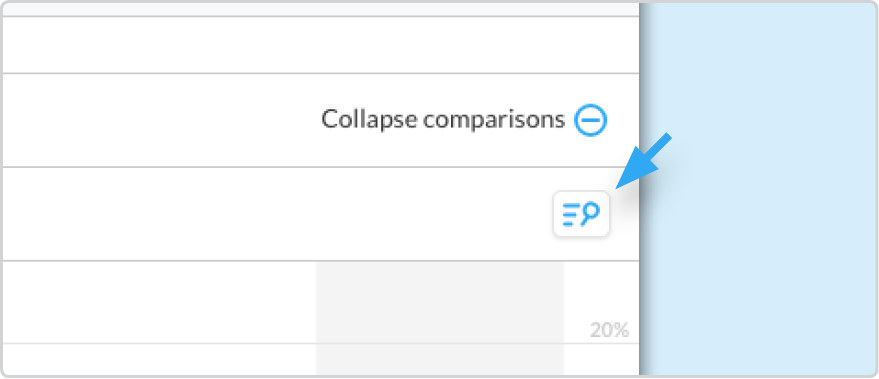
Figure 1 - Search button
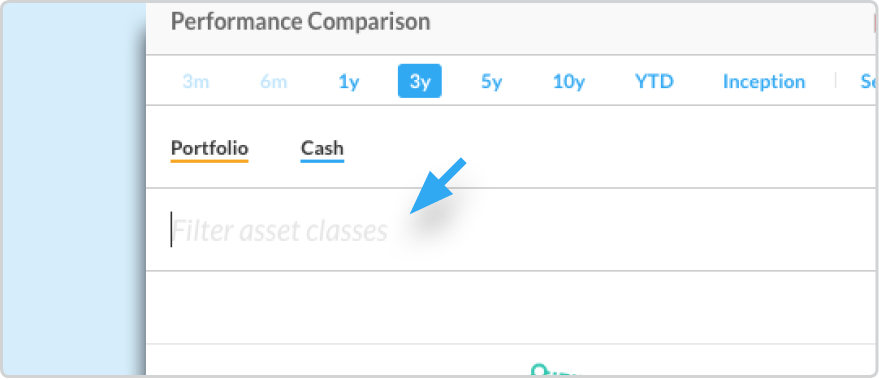
Figure 2 - Search Bar
Any comparable items you select are listed in their respective Comparison menu, underscored by a coloured line.
Any item that appears in a search bar’s drop-down menu with a plus sign icon on its left-hand side can be expanded by clicking that item. This allows you to select any items that exist within that one (e.g. if you expand an account group, you can select an individual account within that group as a comparable item).
Alternatively, you can click the checkmark on the right side of that item to add it to the widget as a single comparable item (e.g. selecting an account group adds one comparable item to the graph that represents the combined rate of return for all accounts in that group to the graph).
You can toggle any selected comparable items on or off in the following ways:
-
Click an item’s name in the Comparison menu
-
Click the visibility button on the left-hand side of a Comparison menu (toggles all items in that menu)
-
Click a Comparison category in the Add Comparison menu in the widget’s top right-hand corner (toggles all items in that category on or off)
You can remove any set comparable item from its Comparison menu by clicking next to the comparable item’s name in a menu.
You can collapse the list of comparable items in your Comparison menu by clicking Collapse comparisons (minus icon) to hide your list of comparable items. Alternatively, you can expand your collapsed list by clicking Expand comparisons (plus icon).